NextTyr builds your website. Your Website Editor helps you keep it current, and you decide when the changes are ready to publish.
You’ve changed your opening hours, added a service, or finally taken a better photo of the shop. Those details belong on your website. NextTyr builds your finished custom site, and your Website Editor helps you update its words, photos, and style. Here’s how to ask for a change and check it before publishing.
Choose what needs updating.
Start with information a customer would use to decide whether to contact you. Outdated hours or a missing service description are worth fixing before you spend time choosing a different heading color.
Read the page once and make a short list. If the changes are unrelated, make separate requests so you can check each result. Updating a service description and replacing a photo is easier to review than asking to refresh the entire site.
Say where the change belongs.
Name the page and section, then provide the details you want to use. If there’s wording that needs to be exact, include it. For a photo change, identify the image being replaced and supply a photo you have permission to use.
Here’s an example: “On the services page, add our maintenance visit below the installation service. Use this description and photo. Keep the existing contact button.” That tells your Website Editor what to change and what to leave in place.
Open the result on your phone, too.
Read the new wording and check the photo. Then try the page’s contact button. It should take the customer where you expect, whether that’s a form, a phone call, or another page.
Check the layout at both computer and phone widths. A heading may wrap differently on a small screen, and a photo that looks fine on your monitor may make the subject hard to see on a phone. Confirm practical details such as hours, service areas, and contact information.
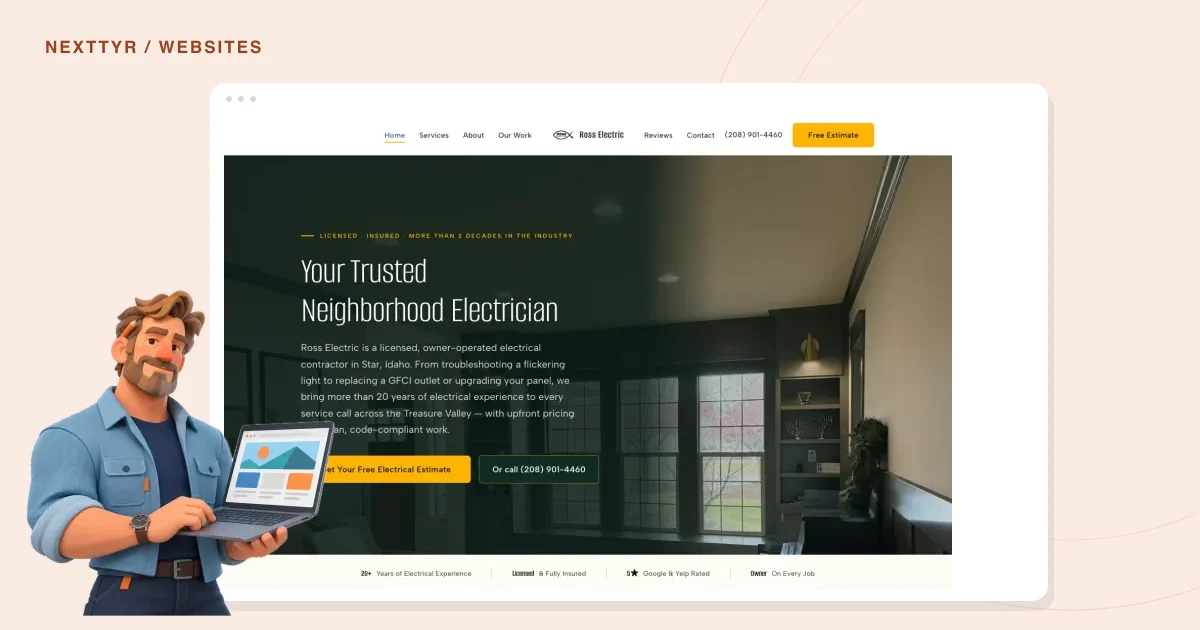
The image below shows a real website built by NextTyr. It’s an example of the finished site, rather than a screenshot of the editor.
Publish when the details are right.
If something needs adjusting, explain what you want changed or use the undo option before publishing. You decide when the result is ready for customers to see.
For future updates, pay attention to the questions customers ask. If people keep calling to ask whether you offer a particular service, the website may need a clearer answer. Keep a note of those questions so you have something useful to work on the next time you review the site.
TAKE A LOOK AROUND
A real website. Built with NextTyr.

Actual NextTyr website build · Built for your businessTap the image for a closer look.
Ready to publish?
Check off each step as you go.
BORROW THESE WORDS
Adapt this for your next message.
On [page], update [section] to explain [specific change]. Use these details: [approved copy or facts]. Keep [element to preserve]. I’ll review the result before publishing.

Want to see how this works in NextTyr?
Meet your Website Editor